As cruisers increasingly turn to Starlink for reliable satellite internet, a peculiar issue has surfaced: mysterious location errors on connected mobile devices. After a night of annoying anchor watch duty due to catamarans and monohulls swinging differently in the anchorage, we readied for the next night by ensuring our anchor drag alarms and positioning apps were all set should we need to refer to them in the night.
However, our Navionics Boating app on our iPads, and all other iOS apps using ‘location services’ on all of our iOS devices showed a consistent and considerable error, over 600’ (1/10 of a mile), positioning us on the wrong side of a nearby reef, in a place we had never been with Avant. It was as if our devices decided we’d secretly teleported to a parallel universe. The error just didn’t go away. Our other, stand alone, GPS enabled devices did show accurate positioning. This wasn’t a sci-fi plot twist but a real-world quirk of how modern devices determine location when hooked up to Starlink (or any other) WiFi.[1]
I spent some time with Apple’s and Starlink’s technical support teams and did some research to try to pin down the source of the error. In this article, I’ll dive into the root cause of these “Starlink-induced” position errors and outline some simple setting tweaks for your Starlink hardware, iOS, and Android devices to help you keep your location accurate.
Understanding the Issue: Why Your Device Thinks You’re Somewhere Else
At its core, the problem stems from how smartphones and tablets use Wi-Fi networks for positioning. Modern devices don’t rely solely on GPS satellites; they employ a hybrid system that includes crowd-sourced databases of Wi-Fi access points.[2] Companies like Apple and Google maintain vast databases of router MAC addresses (unique hardware identifiers) linked to reported locations.[3] When your device connects to a Wi-Fi network, it queries this database for a quick location fix, prioritizing it over GPS for speed and battery efficiency for the first fix.[4] We have seen this aboard Avant for years with cell towers and have learned to allow our devices a couple of minutes to settle on a good GPS fix before navigating—kind of like waiting for its morning coffee to kick in. In this case, the error was persistent and didn’t go away over a period of 15 minutes. If we had relied on the error-riddled data in the dark, we could have easily ended up on a reef.
The Starlink use case throws a wrench into the data. Unlike fixed home or business routers, Starlink terminals are designed for on-the-go use—perfect for cruisers. They register in the databases with a location and then the wind shifts, the boat moves anchor and the stored position is instantly wrong. However, the MAC addresses logged in these geolocation databases remain, leaving them associated with unrelated spots hundreds or thousands of feet away.[5] In effect, your devices are now navigating with an out-of-position navigation aid in the ‘lights list’ of Wi-Fi routers. An immediate solution is disconnecting Wi-Fi—forcing the device back to accurate GPS, which is basically telling your gadget, “Snap out of it!” For various reasons you may not want to disconnect from Wi-Fi, as it may be the source of other data you want to see like radar or AIS.
This isn’t unique to Starlink; any mobile hotspot can trigger it. But Starlink’s mobile nature and newfound ubiquity in the cruising fleet amplifies the issue, as its dynamic IP assignments and changing positions populate these geolocation databases.[6] The impact: Inaccurate positioning during cruises or even safety concerns if relying on location-based alerts. Fortunately, prevention is straightforward with a few targeted changes to your devices’ settings.
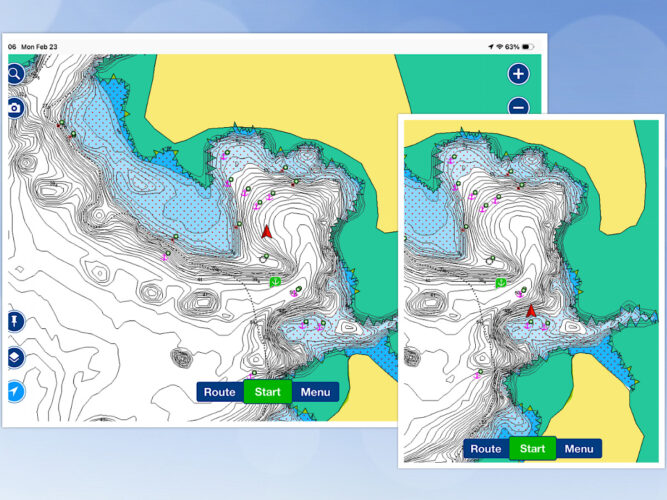
Left: When connected to Starlink our position was shown incorrectly (too far north). Right: When not connected to Starlink, the correct location was shown.
Starlink Settings: Broadcast The Dish’s Location
Start with your Starlink hardware—the dish knows its precise location via both built-in GPS and the Starlink satellite constellation (often accurate to under a meter). By enabling local sharing, you can broadcast this data to connected devices, overriding faulty database entries (not all devices and operating systems can use this, but some can).[7]
To share the Dish’s location:
1 Open the Starlink app (available for iOS and Android) while connected to your network.
2 Navigate to Settings > Advanced > Debug Data (if hidden, tap the Starlink logo 10 times on the home screen to unlock developer mode).[7]
3 Scroll to “Starlink Location” and toggle on “Allow access on local network.”[7]
This shares the dish’s GPS coordinates over Wi-Fi, helping devices like your phone or tablet to snap to the correct spot (if capable).[7]
Opt out of Adding Bad Data to the Database
To prevent your personal Starlink from being part of the problem by adding additional database errors, append “_nomap” to your WiFi SSID (network name) in the app under Settings > Network (ours was AVANT, now it’s AVANT_nomap). This opts your router out of Apple and Google’s (and hopefully others’) location databases, though it will take weeks for existing errors to clear.[8] You will need to re-sign in each of your devices to the new network name after the change.
iOS Devices: Tame Wi-Fi’s Overreach
Apple devices, like iPads and iPhones, are prone to this due to their heavy reliance on Wi-Fi scanning. Here’s how to dial it back:
1 Go to Settings > Privacy & Security > Location Services > System Services (at the bottom).
2 Toggle off “Networking & Wireless” (previously called “Wi-Fi Networking”). This stops iOS from using WiFi networks for location data, forcing reliance on built-in GPS and cellular signals.[9] (You can re-enable “Networking & Wireless” selectively if you need it for urban areas with dense Wi-Fi, just remember to switch it back when on the water.)
3 Ensure “Precise Location” is enabled for key apps (you do this on an app-by-app basis in settings > location > [app name]), and update to the latest iOS for any bug fixes.
You need to do this for each of your devices.[10] It’s like training your iPhone to trust its better instincts instead of gossip from the Wi-Fi in the neighbourhood.
Android Devices: Customize Location Modes for Precision
Also highly reliant on Wi-Fi, Android offers flexible controls, varying slightly by version (e.g., Android 12+ vs. older). Android devices from different manufacturers have different menu structures, but these settings should get you to the root of the issue. Focus on disabling Wi-Fi scanning to avoid geolocation database-driven errors.
- Open Settings > Location > Location Services.
- Toggle off “Wi-Fi scanning” (and “Bluetooth scanning” if desired). This prevents Android from using nearby networks for positioning.[11]
Alternatively, for broader control:
- In Settings > Location > Mode (or Advanced), select “Device only” or “GPS only.” This limits sources to GNSS satellites, bypassing Wi-Fi entirely.[11]
If using Google services, check Settings > Location > Google Location Accuracy and turn it off—it ‘enhances’ accuracy via Wi-Fi but can introduce offsets. Reset by restarting the device (power off and on again).[11]
In General
Always update your apps, iOS, Android, and your Starlink and its app to enable capability improvements. Make sure to update new devices with the appropriate settings as you acquire them. Cross check your position by other means frequently (Eyeball Mk I, bearings, depths, distances off, standalone GPS receivers, etc.) and particularly when about to use these devices for ‘tricky’ navigation like restricted channels, reef entries and the like. Remember, shutting off Wi-Fi on your device when using it to navigate will eliminate this source of potential error and force your device to use GPS/GNSS and cell towers.
Charting a Course Forward
These geolocation glitches highlight the growing pains of satellite internet like Starlink, which empowers cruisers to stay connected far from shore. By tweaking these settings, you can reclaim pinpoint accuracy without sacrificing connectivity. Remember, test changes in a safe spot—perhaps at the dock or in your next anchorage. Safe sailing and may your coordinates always be true.
References (click these URLs for more details):
- Starlink showing incorrect location [1]
- How WiFi Positioning Works [2]
- Wi-Fi Positioning Can Expose Your Location and Movement, Here’s How to Stop It [3]
- How does turning on WiFi improve location accuracy of a smartphone? [4]
- My IP geolocation is incorrect or too far away. [5]
- Geolocation Causing Sync Issues [6]
- New app 2022.12.0 in developer mode has a lot more data in the debug data if you tap on the small left/right arrow in top right corner. [7] (Note: This discusses debug features, including location sharing options)
- Control access point inclusion in Google’s Location services [8]
- What is Networking & Wireless on my iPhone settings? [9]
- About privacy and Location Services in iOS, iPadOS, and watchOS [10]
- Manage your Android device’s location settings [11]